
If you’re still using Windows 10, big changes are coming.
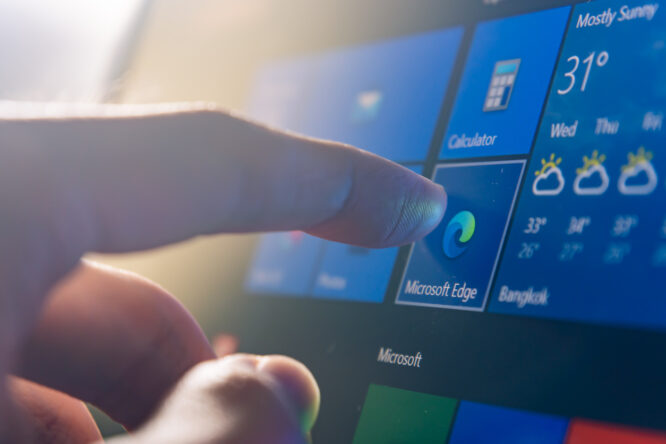
Millions of PC users have spent months dreading 13 October 2026 as the final cutoff date for Windows 10, expecting to be forced into buying a new computer or left completely unprotected against security threats. However, in a massive turnaround, Microsoft has extended its security updates for home users until 12 October 2027, giving everyone a full extra year to make the switch.
Even better, getting your hands on these extra security patches doesn’t require a paid subscription if you take advantage of simple account backups. Before you rush out to buy an expensive new desktop or laptop you don’t actually need yet, it is vital to know how these new rules protect your current setup and what you need to do to claim your extra 12 months of safety.
Losing support puts Windows 10 users in a very vulnerable position.

Security updates are what keep your computer safe from hackers and viruses, quietly fixing weaknesses in the background before criminals can take advantage of them. Without these updates, your PC will keep working as normal, but it’ll become an easier target over time.
This isn’t a small group of people, either. Around 21 million people in the UK are thought to still be using a PC running Windows 10, meaning a huge number of devices are set to lose this protection when support ends.
Check which version of Windows you’re running.

If you’re not sure what you’re working with, right-click the Start button or press the Windows key, then go to Settings, System, and About to see your version. Checking your Windows specifications here gives you the full details you need before deciding what to do next.
If you spot a small “O” in the bottom left corner of your screen instead of the Windows logo, you’re actually using a Chromebook, which runs a completely different system called Chrome OS and isn’t affected by any of this.
Upgrade to Windows 11 for free.

If your PC is compatible, upgrading to Windows 11 costs nothing and is the simplest fix available. You can check compatibility using a free tool online, then upgrade by right-clicking the Start button, choosing Update and Security, then Windows Update, and following the prompts.
Windows 11 looks and feels similar to Windows 10, just simplified and generally faster, so the switch shouldn’t feel like learning something completely new. If your PC isn’t eligible, you’ll need to look at other options like buying new hardware or upgrading existing parts.
Consider buying a new computer.

For older machines that simply can’t handle Windows 11, buying a new computer might end up being the easiest route. Look for at least 8 GB of RAM, ideally 16 GB if you can stretch to it, along with at least 256 GB of SSD storage.
For the processor, aim for at least an Intel Core 5 or AMD Ryzen 5, and avoid anything labelled Pentium or Celeron, since these are now considered too outdated to be worth buying. If you’re after one of Microsoft’s newer Copilot+ laptops built for running AI tools, you’ll want 16 GB of RAM and a more powerful processor like a Snapdragon X Series or Intel Core Ultra chip.
Turn an old laptop into a Chromebook.
If buying a new PC isn’t appealing, installing ChromeOS Flex on an old Windows laptop is a free alternative worth considering. It requires far less processing power than Windows 11, so it’s likely to run fine on older hardware that wouldn’t otherwise qualify for an upgrade.
Chromebooks work differently to Windows, relying heavily on a Google account and online apps like Docs and Sheets rather than traditional installed software. Some popular programs, including Microsoft Office, are available to download, but most regular Windows software won’t work on it.
Upgrade the parts inside your desktop.

If you own a desktop rather than a laptop, upgrading individual components might let you meet Windows 11’s requirements without buying a whole new machine. One key requirement is a security chip called TPM 2.0, which is mostly only found in PCs built within the last five years.
This option isn’t for everyone, since it can be fiddly if you’re not confident working inside a PC, and mistakes are easy to make without experience. If you’d rather not attempt it yourself, a trusted local computer repair shop can usually handle the upgrade for you.
Extend your Windows 10 licence for free.

If you need more time before switching, Microsoft’s Extended Security Updates programme offers a one-year extension, keeping your PC protected until 12 October 2027. You don’t need to pay for this, as long as you’re willing to back up your settings to the cloud through your Microsoft account.
To set this up, make sure Windows 10 is fully updated by going to Settings, Update and Security, then checking for updates. If eligible, you’ll see an option to enrol, where you can choose to back up your settings for free, redeem Microsoft Reward points if you’ve collected any, or pay a one-off fee of £24.99 if neither option suits you.
Switch to Linux for free.

For anyone comfortable exploring something new, switching to Linux is a completely free alternative to sticking with Windows. Versions like Ubuntu come with built-in apps for browsing, messaging, and basic content creation, along with regular updates and solid security features baked in.
If you’d prefer something that feels closer to Windows, Linux Mint includes a similar taskbar layout and pre-installed software, making it a gentler switch for newcomers. Setting up Linux does take a bit more technical confidence than the other options here, so it’s best suited to anyone who’s reasonably comfortable tinkering with their PC.